Compatible Packs
The plugin ships with one pack of its own, BasePack, a plain blockout set to build with straight away. For finished art, install a PropHaus modular pack or author your own from meshes you already have.
PropHaus packs built for HausTools
These packs come ready for HausTools, with nothing to import, convert or set up. Each is sold separately on FAB.
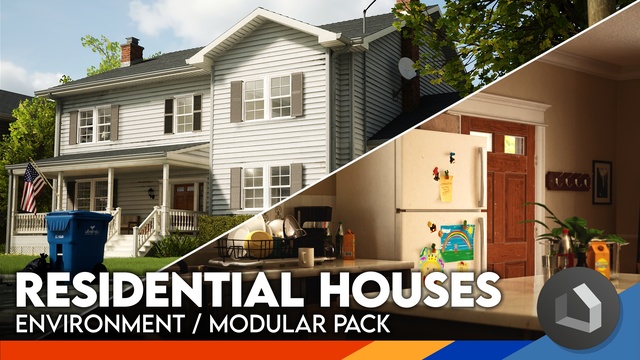
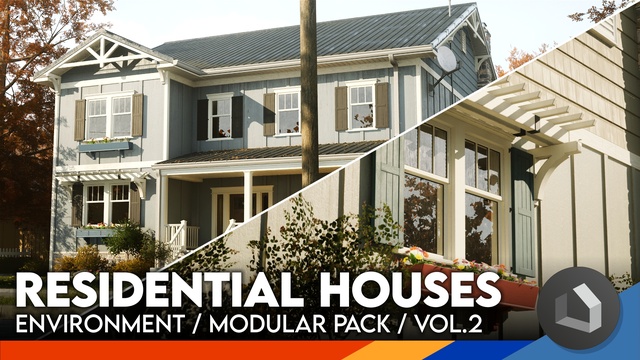
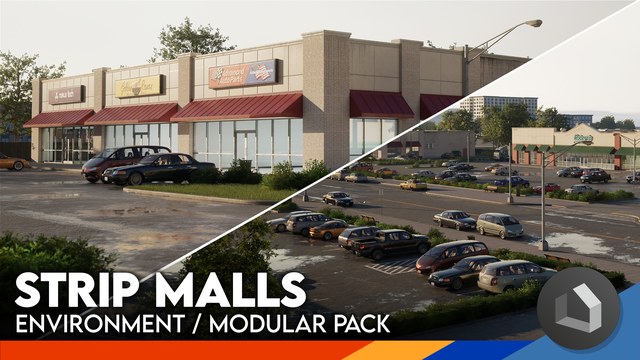
More packs are on the way, and HausTools support for the existing PropHaus modular packs is planned for a later date. Follow PropHaus on Twitter or join our Discord for updates.
Installing a pack
- Get one of the packs above on FAB with the account linked to your Epic Games Launcher.
- Add it to your project from your FAB library.
- Open HausTools and pick the pack from the catalog's PACK dropdown.
The pack lands in your project's Content folder like any other FAB pack, and you can browse, duplicate and edit its meshes as usual.
How HausTools finds a pack
HausTools finds every pack in your project by itself and lists them in the catalog's PACK dropdown, so there is nothing to register. The pack you pick there is the one you build with, and HausTools remembers it as Default Pack in the project settings.
Switching pack changes what you place next, and everything already built keeps the pack it came from. One building can use styles from several packs, but packs differ slightly in their pieces, so check that they sit well together.
Until you pick a pack, HausTools builds with BasePack, the blockout pack that ships with the plugin.
Using your own assets
Any meshes you own can become a pack. HausTools places pieces by measuring them, so your meshes need to follow the same six mesh rules as the PropHaus packs. See Building Your Own Pack.